How to Set Up Home Assistant Chromium Dashboard in Kiosk Mode

Setting Up Chromium in Kiosk Mode to Run a Home Assistant Dashboard on a Touchscreen Device (Debian)
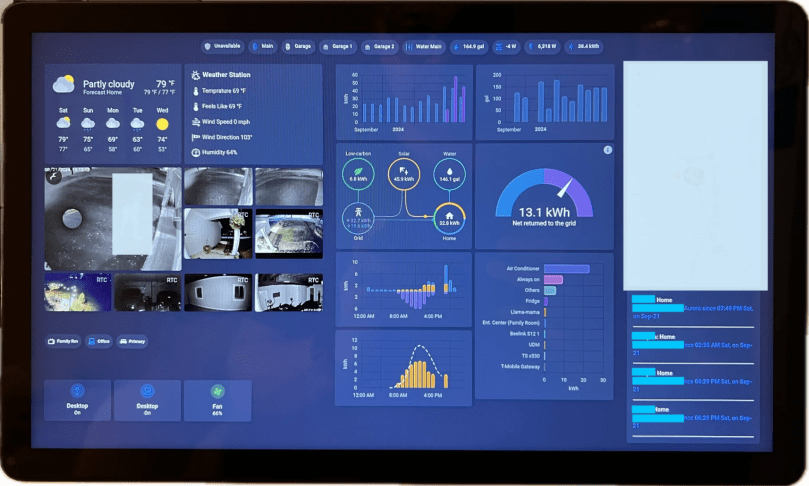
I’ve recently gone through the process of setting up a touchscreen device to run my Home Assistant dashboard in kiosk mode on Debian, and I wanted to share the steps I took to get it up and running smoothly. To make the process easier for anyone looking to do the same, I’ve created a script that automates most of the setup, including turning off the mouse pointer and configuring Chromium to launch in full-screen kiosk mode.

Choosing Chromium for Kiosk Mode

I’ve been trying different ways to display my Home Assistant dashboard, and after trying a few different approaches (including cheap android tablets and browsers like Fully), I found that the best solution was to use a dedicated touchscreen device with Chromium running in kiosk mode on Debian. This setup offers a clean, full-screen interface that loads the dashboard automatically and eliminates the need for any unnecessary browser UI.

Benefits:

  • Fullscreen, distraction-free view of my Home Assistant dashboard.
  • Automatic startup: Chromium launches as soon as the device boots up.
  • Touchscreen support: Works perfectly for my touch-based interactions.
  • No mouse pointer: Since it’s a touchscreen, the script turns it off automatically.

My Setup:

  • Debian-based system: I started by installing Debian 12 (Bookworm) on a Mele PCG02 with an N4000 CPU and 4GB RAM. Since I didn’t need a graphical desktop environment for this project, I opted to install Debian without it. During the installation, I only selected SSH and Standard Utilities, keeping the system as lightweight as possible.
  • Touchscreen display: I’m using a 15-inch FHD IPS touchscreen. This worked out great with Chromium in kiosk mode, and is good enough to display my Home Assistant dashboard.
  • Home Assistant instance: You’ll need the IP address of your instance, as well as the path to your dashboard.

Installing Sudo

One thing I noticed after the installation was that the sudo command wasn’t included by default. I had to install it manually and add the user to the sudo group using:

su
apt update
apt install sudo
usermod -aG sudo

Setup Using ha-chromium-kiosk-setup.sh:

1. Downloading the Script
wget https://raw.githubusercontent.com/kunaalm/HA-Chromium-Kiosk/refs/heads/main/ha-chromium-kiosk-setup.sh
2. Running the Script

Once the script was downloaded, I gave it executable permissions and ran it. This is how I did it:

chmod +x ha-chromium-kiosk-setup.sh
./ha-chromium-kiosk-setup.sh
3. Configuration Prompts:

The script is designed to be interactive and need the following:

  • Home Assistant IP Address: Needed, IP address of my Home Assistant instance.
  • Home Assistant Port: Optional, defaults to 8123
  • Dashboard Path: Optional, defaults to /lovelace/dashboard.
  • Kiosk Mode Option: Optional, adds ?kiosk=true to the end of the URL.

Conclusion

Setting up a touchscreen device to run a Home Assistant dashboard using Chromium in kiosk mode on Debian turned out to be a great solution for my smart home setup. The script I have written automates most of the setup and removal, including the kiosk mode configuration and mouse pointer removal.

You can find the script and detailed documentation on GitHub: HA-Chromium-Kiosk.

Automating 3-way Switch Shelly + Home Assistant: Part 1 – Wiring

I had replaced my plain old bulbs with WiZ light bulbs in my hallway. The bulbs were originally controlled by a gang of 5 switches. Initially I had replaced the 1st and last switches with tp-link Kasa HS210 3-way smart switches. This was fine until I wanted to add a motion sensor and also change the bulbs’ settings (change mode based on time of day etc). It turns out controlling smart bulbs with smart switches is not a good idea, one cant change bulb settings when not powered and changing them while powered creates delay, moreover the automation logic gets complicated. The better option to have plain old switches and add a smart relay between them and the light bulbs. The key is to decouple the switch and the power to the light bulbs and have the switch(s) be inputs to the automation. This allows the light bulbs to be constantly powered and be controlled the switch(s) and other smart controls.

Shelly 1 (I have the gen. 1) is a perfect fit for what I wanted to achieve. I replaced the smart switches with plain old 3-way ones (I did initially leave them in, but it’s an overkill I think) and added the Shelly 1 between the end switch and the light bulbs.

Wiring

!!! WARNING: Please be careful if you plan to do this on your own, playing with electricity is very dangerous, always turnoff power at the panel before attempting anything and ensure all connections are secure and tidy. It’s advisable to ask a certified electrician to help !!!

Shelly 1 has 5 terminal. The Line and Neutral terminals power the internal electronics and need to be connected at all times. This requires that there is are line and neutral wires coming in to the junction box where the Shelly 1 is to be installed. In many cases there may only be the traveler and the load wires in the junction box, as was the case with mine. I had to splice and fish the line and neutral wires from a nearby wall socket, but you may be have better luck! I disconnected the load wire from the 3-way switch (typically connected to the black terminal/screw in the US) and connected it to the O terminal on Shelly 1. I connected a wire between the switch’s load terminal (the black one) and Shelly SW terminal. Finally I connected the I and L terminals to line wire I had fished and then N the neutral wire I had fished.

The way this works is that there is a relay between I & O terminals and this relay is controlled by Shelly 1’s electronic based on software commands or the SW terminal. The default mode of operation has the SW terminal logically connected to the relay control, this means that the switch directly controls the power to the light bulbs connected to Shelly 1. This can be overridden by setting the button setting in Shelly 1 to ‘detached’.

Configuration

I used the Shelly app on on my iPhone to discover and setup Shelly 1. Pretty straight forward. I typically assign a static address to all my WiFi smart home devices, this allows me to group and manage them better, I did this from my UDM console. I did the rest of the setup using the browser.

The important setting changes I made was to set SETTINGS > BUTTON TYPE to Detached Switch.

Shelly 1 Button Type Setting

changed the name and set cloud mode off, but these are optional. Left the rest of it as is.